How to Use Tracelight
Tracelight works directly inside Excel as an AI assistant for financial modeling. This tutorial walks you through the core features: reviewing and auditing models, building analysis, automating with skills, formatting outputs, and exporting to client-ready documents.
Tracelight has three primary use cases: model review, building and maintaining analysis, and exporting outputs to PowerPoint, Word, or HTML. Each is covered below.
Prompting a review
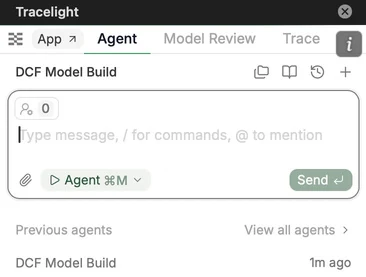
Open the Tracelight chat pane and describe your review in plain English, as you would to the person who built the workbook. The more specific your prompt, the better the output — though Tracelight will ask clarifying questions if it needs more direction. Before executing, switch to Plan mode to review the proposed approach and iterate. Once satisfied, Tracelight runs the review and presents a complete change set for your sign-off.
Tracing formula precedents
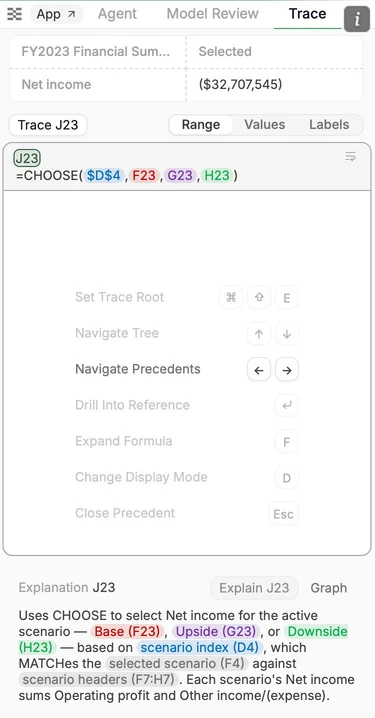
Select any cell and open the Trace panel. A navigation pane shows the cell’s location on the sheet; below it, an AI-generated explanation describes what the formula is doing in plain language. Press Enter to step into the full precedent tree and navigate branch by branch. Toggle between range, values, and labels views to interrogate the logic at whatever depth the review requires.
Running a model review
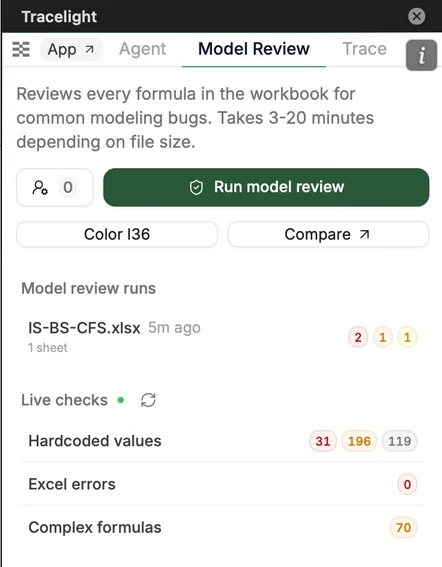
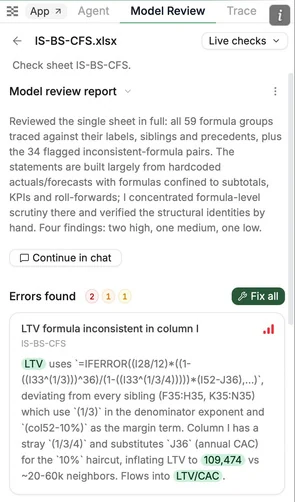
Switch to the Model Review tab to run an error check across the worksheet. Unlike Excel’s built-in checks, which are limited to surface heuristics, Tracelight evaluates every cell from first principles — determining whether each formula achieves what it was intended to do. Live checks run continuously in the background, surfacing hard-coded values, complex formulas, and Excel errors as they arise. Browse each flag and decide whether to fix or accept it.
Using the chat to build
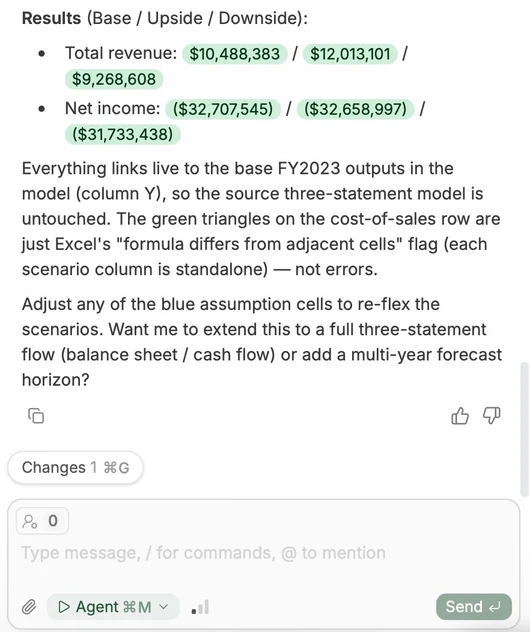
Tracelight builds analysis directly in your spreadsheet from a plain-English description. It does not use your workbook as a scratchpad — all computation happens in the background and output is only written once Tracelight is confident in the result.
Describe what you need in the chat pane and Tracelight builds it. Any green flags in the response are clickable — they link directly to the relevant cell reference in your workbook. Use Agent mode to complete the task in one go, or Plan mode to iterate on the approach before any execution begins.
Automating with skills
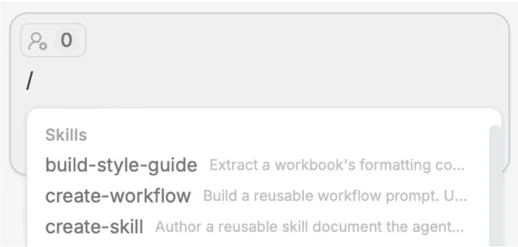
A skill is a saved prompt — typically a large, repeatable task. Open the Skills dropdown by typing a forward slash in the chat and select a skill to run it (to build one, use create-skill). For any task you run regularly, saving it as a skill removes the need to re-prompt each time and ensures consistent outputs across your team.
Applying a style guide
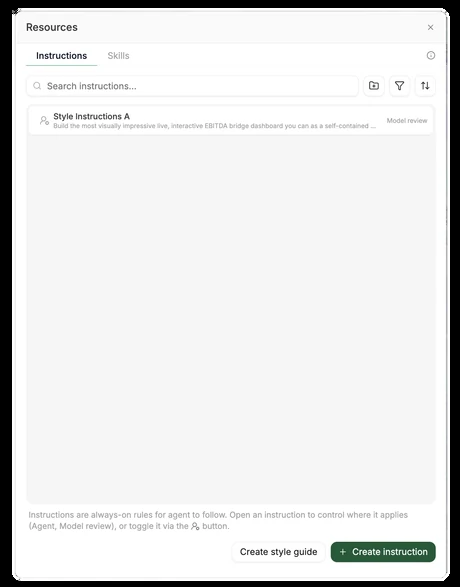
Style guides work like saved formatting instructions — manage them from the instructions tab in the chat. When a style guide is active, any output Tracelight produces will match its rules automatically. Create style guides for internal use or for specific clients to ensure every deliverable is formatted consistently without manual cleanup.
Exporting to PowerPoint, Word, or HTML
Upload a branded template — a PowerPoint deck, a Word document, or an HTML file — directly into the chat pane. Tracelight exports the relevant analysis into the template, ready for internal review or client presentation. Open the output in the browser and download with one click.
Comparing model versions
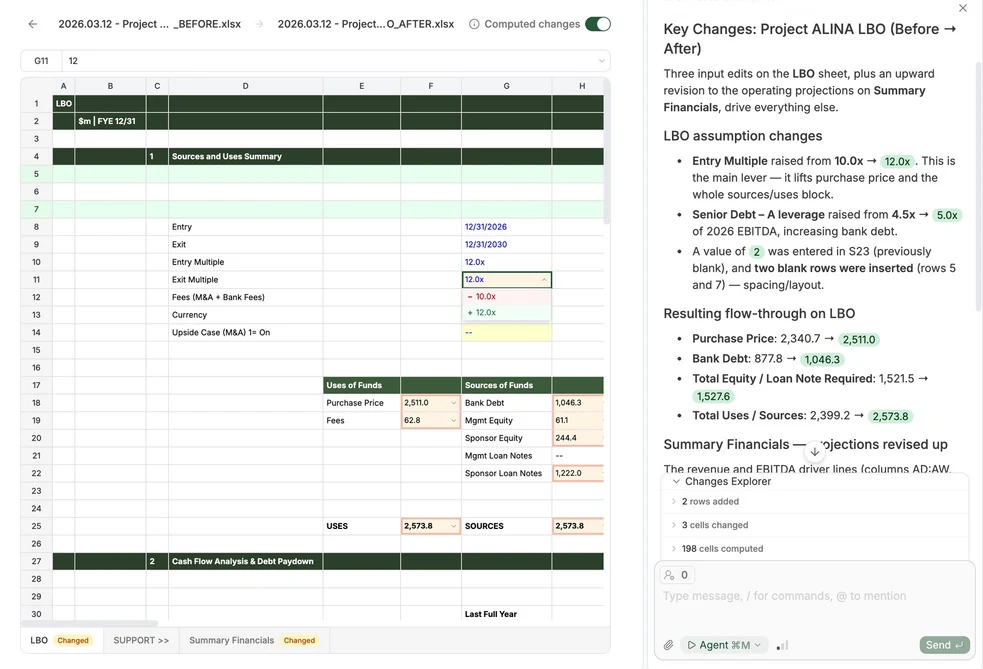
Access Compare Workbooks through the Tracelight icon above the chat, or directly in the Platform. Upload a before and after version of any file and Tracelight surfaces every change between them — added or deleted rows and columns, formatting changes, and the downstream computational effects of any altered assumptions. An AI summary gives you the headline changes at a glance; toggle to the computed changes view to trace cascading effects cell by cell.