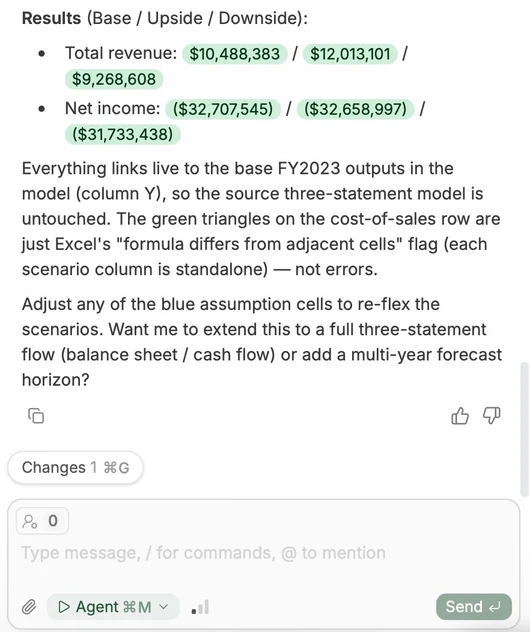
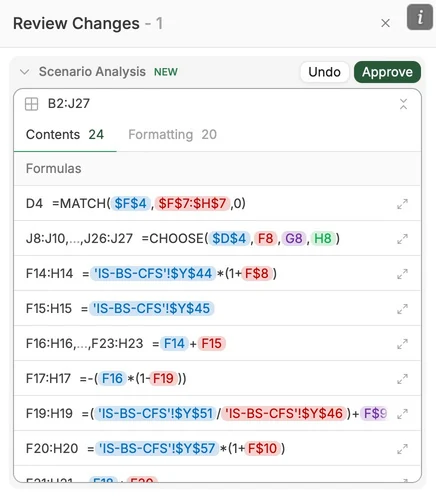
All edits are recorded. You stay in control, view what has changed, and can undo changes.
Once Tracelight has built your analysis, click the “Changes” button at the bottom of the chat to see each component of Tracelight’s changes.
B. Model Review
Model review is available in both the Tracelight Platform and Excel add-in.
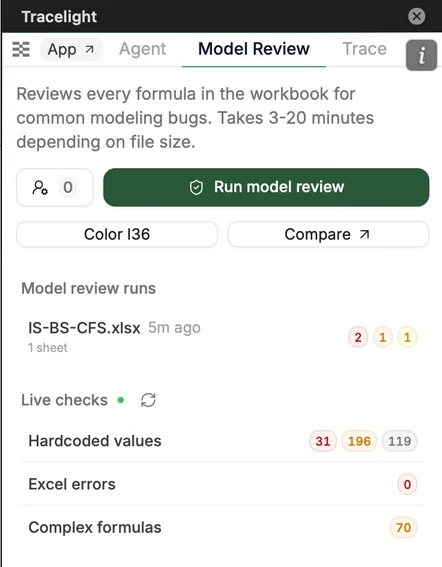
To check for errors in your sheet, click on the “Model Review” tab, and then click the “Run model review” button [see below left]. Tracelight highlights formulas that could be mistakes or are not following best practices.
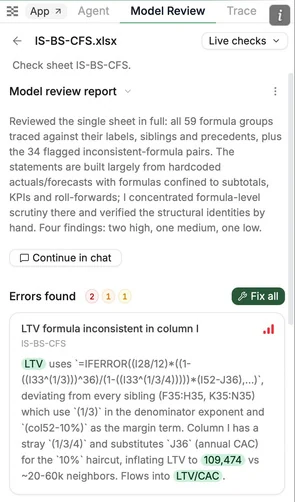
Click on a model review run to examine each error by severity; Tracelight shows a summary of each error [see below right].
To navigate to a relevant cell, just click the cells highlighted in the summary.
Click the “Fix all” button to correct the errors.
Use Color to color-code cells by formula structure. For Compare, see “Compare Workbooks” below.
View “Live checks” to instantly see and filter potential errors on your current sheet.